 Nox
NoxInstall the Mac app
Nox can run in its own app window and stay in your Dock, separate from normal browser tabs.
To install it:
- Open Nox in Google Chrome on your Mac.
- Click the install/download icon on the right side of the address bar.
- Confirm the installation.
- Open Nox from Applications, Spotlight, or the Dock.
You can find the same visual instructions under Menu → Preferences → Nox App.
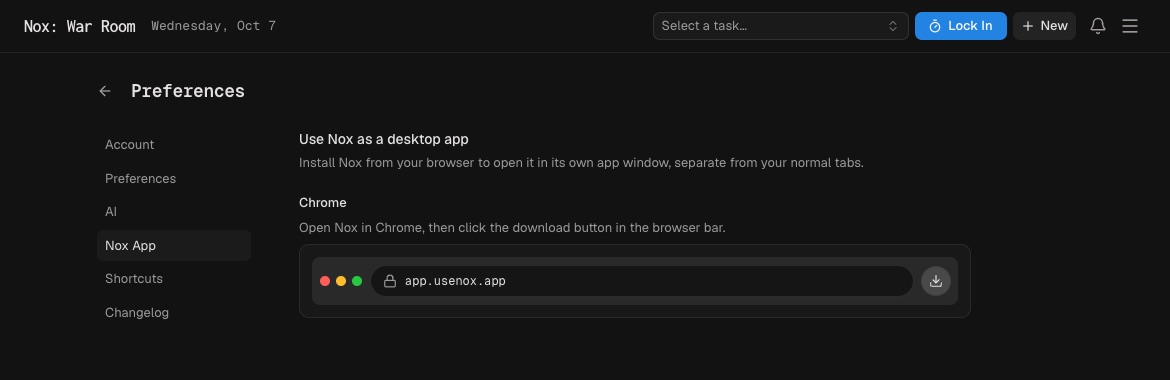
The Mac app is the installed web version of Nox, so your account and data remain the same. When an update is available, use New version in the header. Press Cmd + R inside the Mac app to refresh its data without a full browser-style reload.
Installing Nox does not create a separate workspace. Move between the app and browser with the same data.
Pin it to your Dock if Nox is part of your routine. A dedicated window can reduce drift into unrelated tabs.
If the icon is missing, open the main Nox workspace in Chrome. Browser use remains fully supported.