 Nox
NoxCalendar, dates, and slipped work
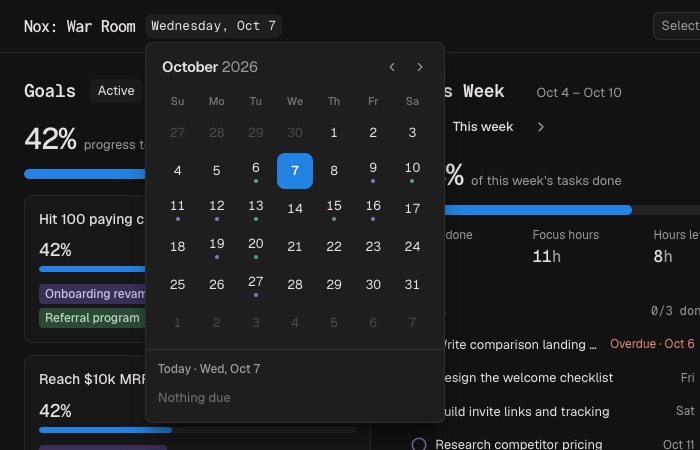
Dates help Nox surface the right work at the right time. Use the header calendar for due tasks and important dates, or open the project and task calendars to plan visually.
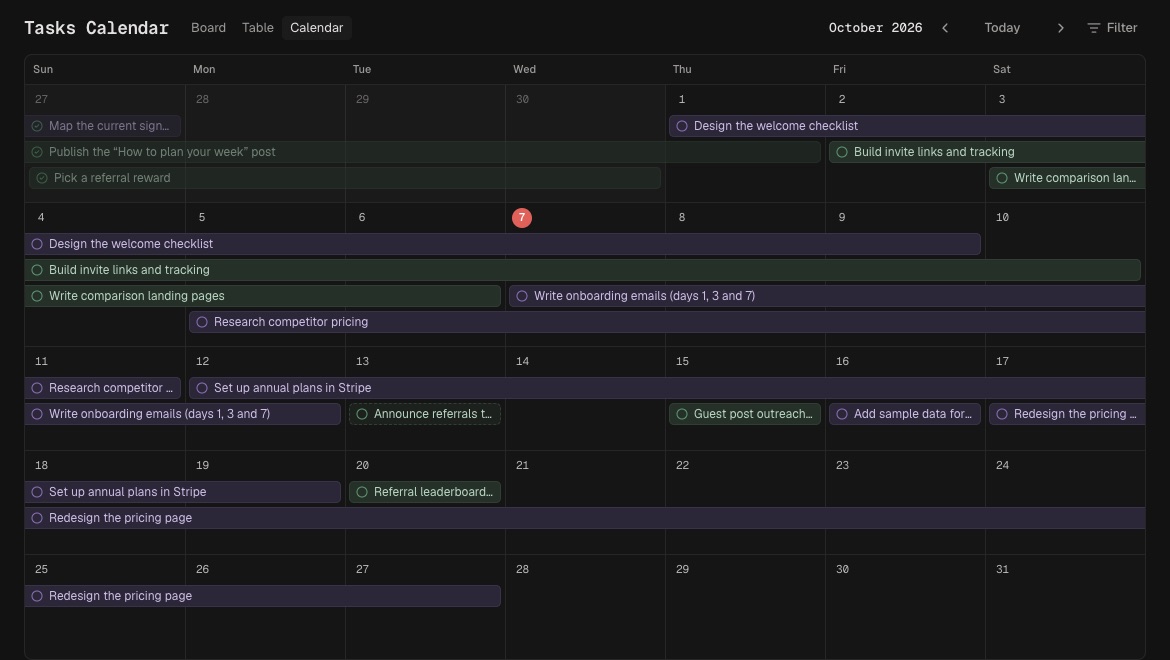
In a calendar, drag an item to move it or drag its edge to change its duration. Mark a date as a hard deadline when it must not move automatically.
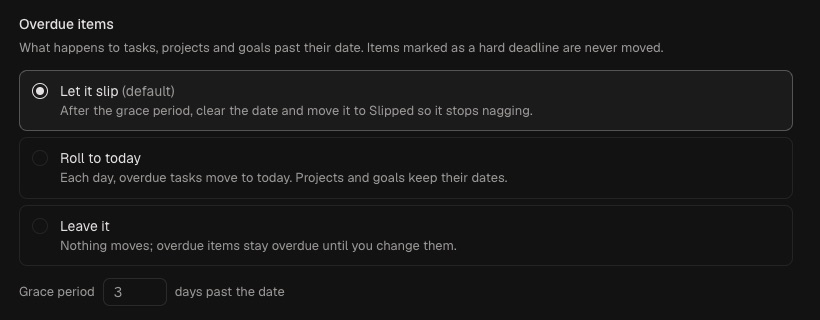
Nox can handle overdue work in three ways:
- Let it slip after a grace period.
- Roll it onto Today.
- Leave it where it is.
Choose the behavior in Preferences. Slipped work appears in its own list, where you can bring it back to Today or drop it.
Use hard deadlines sparingly. A plan is easier to trust when flexible dates are allowed to be flexible.
Important dates represent events that matter but are not tasks—for example, a launch, meeting, or campaign milestone. They appear beside due work in the header calendar.
When something slips, choose deliberately: return it to Today, give it a credible date, or drop it. Constantly rolling work forward hides capacity problems.
For broad planning, use the project calendar. For execution details, use the task calendar.