 Nox
NoxLock in on one thing at a time
Start a timed Lock In session on a task and let everything else fade away until the timer runs out.
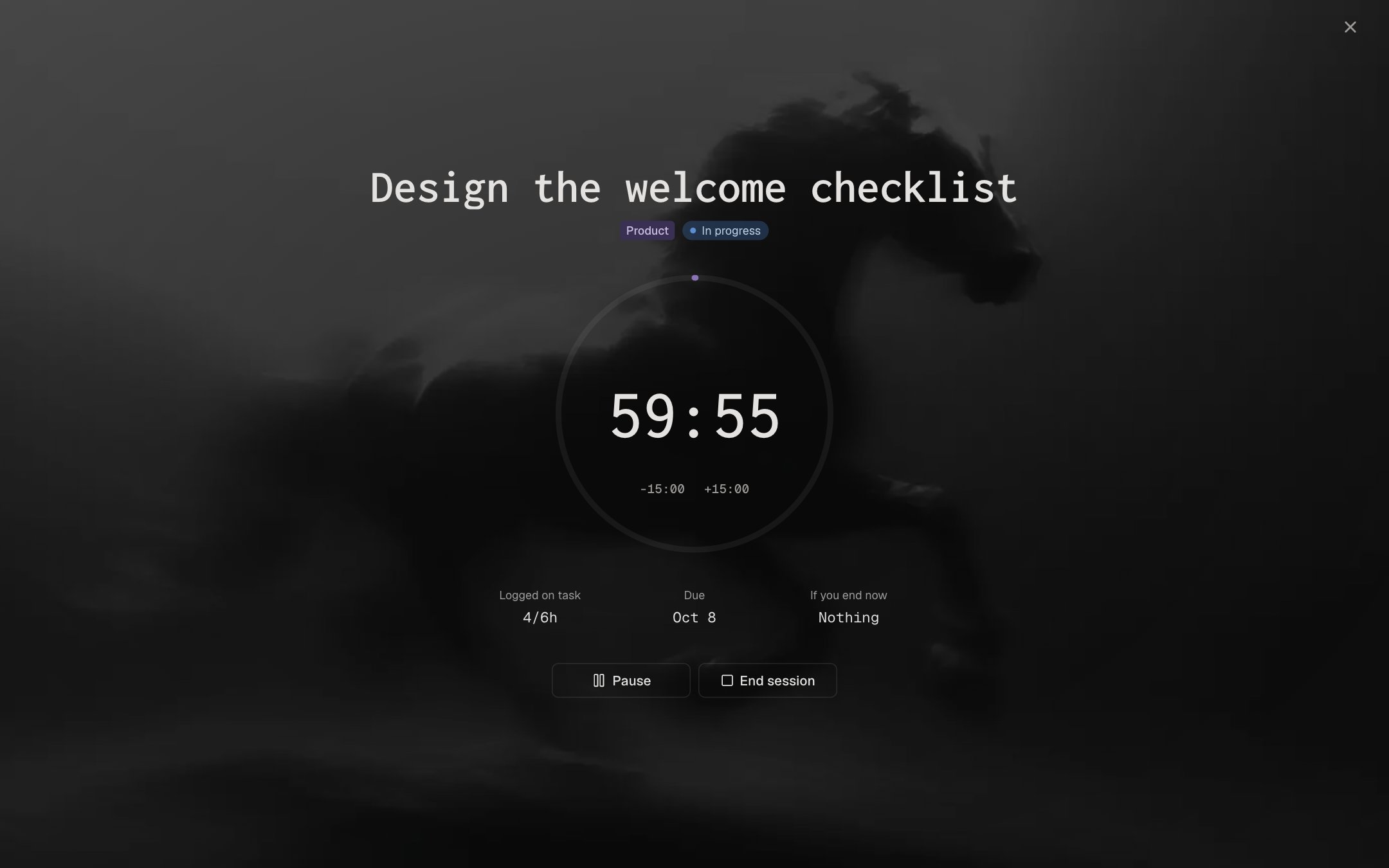
Timed sessions
Add or remove 15 minutes as you go, and pause when life gets in the way.
A Today view
See only what matters today, so choosing the next thing takes seconds.
Keyboard first
Shortcuts for the things you do most, so you can stay in flow.
How a Lock In session works
Lock In is Nox's focus timer. It puts one task on screen, runs a countdown, and logs the hours to that task when you're done.
- Pick one taskChoose a task from Today, or press L to start a Lock In.
- Work until the timer endsAdd or remove 15 minutes as you go, pause, or step away while the timer keeps running.
- Note what you didWhen the session ends, its hours are logged and you can add a note about what you got done.
Locked in
After the session
Focus FAQ
What is Lock In?
Lock In is a timed focus session on a single task. It opens full screen with a countdown, and you can add or remove 15 minutes as you go.
Can I take a break during a session?
Yes. You can pause the timer, or step away for a moment while it keeps running.
Do focus sessions log my hours?
Yes. When a session ends, its hours are logged on the task, and you can add a note about what you did. Sessions under 15 minutes aren't logged. See how tracking works.
Can I start a session without choosing a task?
Yes. Sessions can start without a task, and you can also lock in on a quick todo.
Does Nox have keyboard shortcuts?
Yes. Press L to start a Lock In and / to ask Hopium. Buttons show their shortcut, and you can turn the hints off in Preferences.
Is Lock In free?
Yes. Every feature in Nox, including Lock In, is free during the private beta.