 Nox
NoxKnow exactly where your hours go
See the hours behind every task, and how much of your week's plan is done, while you work.
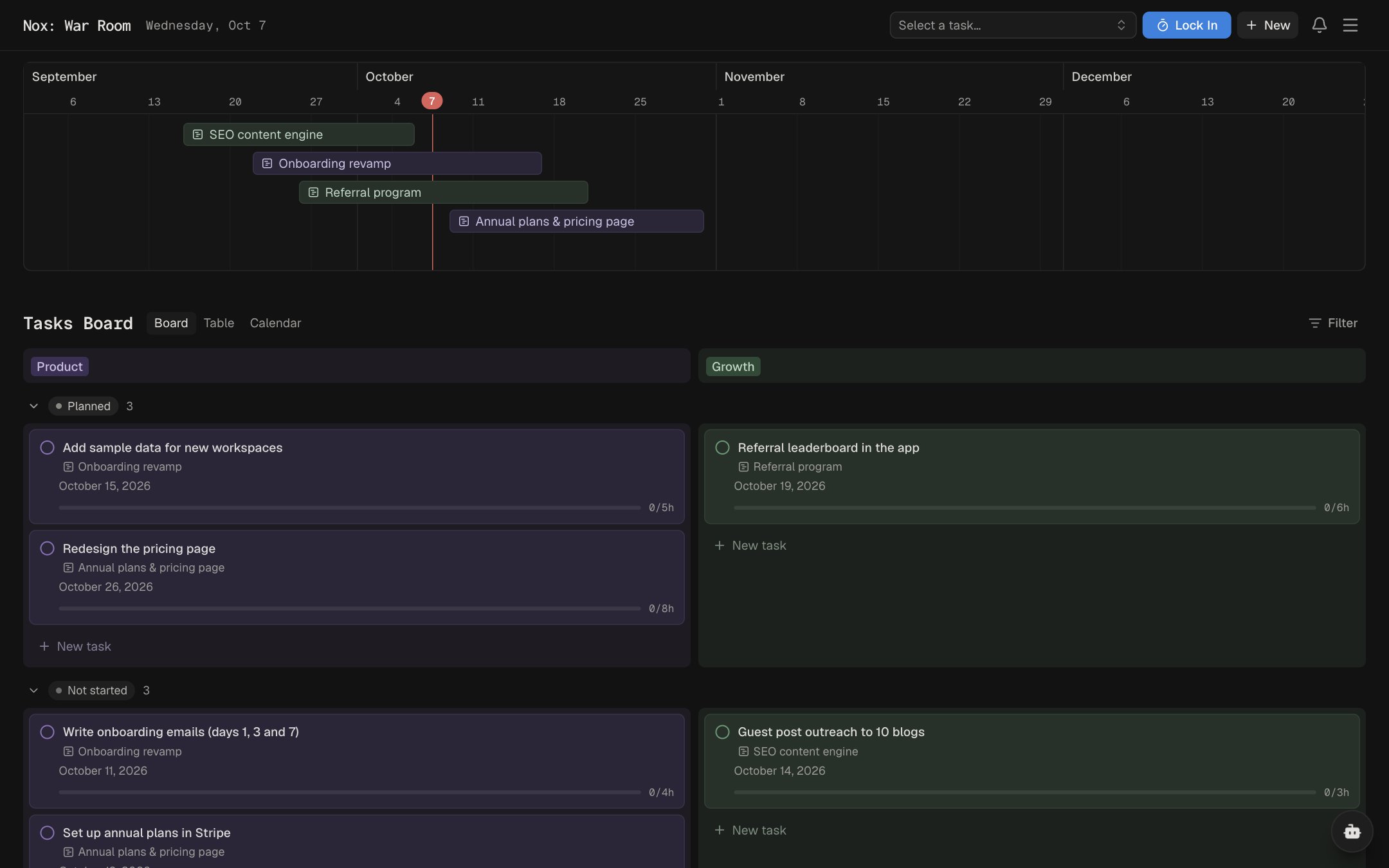
Hours on every task
Each task shows time spent against its estimate, so you notice when something runs long.
Progress you can see
Your goals, your week and your day each show how much is done, so you can tell what's moving and what's stuck.
A daily log
Keep notes on each day next to what you did, so looking back is easy.
How time tracking works in Nox
Nox logs your hours from the focus sessions you already run, so tracking happens while you work instead of in a timesheet at the end of the week.
- Lock in on a taskStart a timed Lock In session on the task you're working on.
- Hours land on the taskWhen the session ends, its hours are logged on that task and shown against your estimate.
- Review your daySee how much of today and this week is done, and write a short note about the day.
Task
Work sessions
This week
Tracking FAQ
How does Nox track my time?
Hours are logged when you finish a Lock In session on a task. Sessions under 15 minutes aren't logged.
Can I edit a session after it's logged?
Yes. Every task keeps a history of its work sessions, and you can change a session's hours, time and note, or delete it.
Where can I see my progress?
Goals show how close you are to their target, This Week shows planned versus done for each day, and Today shows your progress and the hours left.
What is the daily log?
Each day has room for notes, so you can write a summary of how the day went next to the work you did.
Do quick todos count towards my progress?
Yes. Quick todos have hours too, and count towards today's progress, hours left and focus hours.
Is time tracking free?
Yes. Every feature in Nox, including time tracking, is free during the private beta.